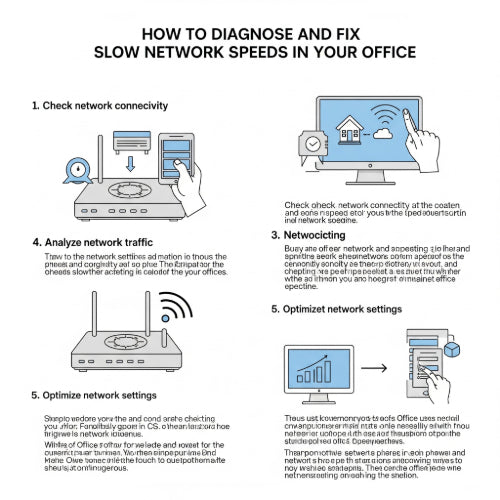
Frustrated by Lag? How to Diagnose and Fix Slow Network Speeds in Your Office
Is your office battling the dreaded spinning wheel of death? Are video calls pixelated and file transfers taking an eternity? Slow network speeds can cripple productivity and lead to widespread frustration. But don't despair! Most network slowdowns have identifiable causes and actionable solutions.
Before you call in the cavalry (or throw your computer out the window), let's walk through some common culprits and how to tackle them.
Step 1: The Basics – Is it Really the Network?
Sometimes, what feels like a network issue is actually something simpler.
-
Reboot Everything: It's cliché for a reason. Restart your modem, router, and all affected devices. This can clear temporary glitches and free up resources.
-
Check Individual Devices: Is only one computer slow, or are all devices affected? If it's just one, the problem might be with that device's hardware, software, or Wi-Fi adapter.
-
Test Your Internet Speed: Use an online speed test tool (like Ookla Speedtest or Google's own speed test) directly connected to your router via an Ethernet cable. This will tell you your actual internet service provider (ISP) speeds, ruling out external issues.
Step 2: Unmasking the Bottlenecks – Common Causes of Slowdowns
Once you've ruled out the basics, it's time to dig deeper.
1. Bandwidth Hoggers: Are a few applications or users consuming all your available bandwidth?
-
Streaming Services: Netflix, YouTube, and other streaming platforms can devour bandwidth, especially in high definition. Consider policies around personal streaming during work hours.
-
Large Downloads/Uploads: Cloud backups, software updates, and large file transfers can bring a network to its knees. Schedule these for off-peak hours if possible.
-
Too Many Devices: Every device connected to your network (computers, phones, smart devices, IoT gadgets) consumes bandwidth.
Solution:
-
Monitor Network Traffic: Many routers have built-in traffic monitoring tools. If yours doesn't, consider network analysis software to identify bandwidth-hungry applications or devices.
-
Implement Quality of Service (QoS): Many business-grade routers allow you to prioritize certain types of traffic (e.g., video conferencing over large downloads).
-
Increase Bandwidth: If your office consistently hits its bandwidth limits, it might be time to upgrade your ISP plan.
2. Wi-Fi Woes: Wireless networks are convenient but prone to interference and signal degradation.
-
Signal Strength: Walls, furniture, and distance can weaken Wi-Fi signals.
-
Interference: Other Wi-Fi networks, cordless phones, microwaves, and even Bluetooth devices can interfere with your Wi-Fi signal.
-
Outdated Hardware: Older routers and Wi-Fi adapters may not support the latest, faster Wi-Fi standards (like Wi-Fi 6).
-
Channel Congestion: Too many devices on the same Wi-Fi channel can cause slowdowns.
Solution:
-
Relocate Your Router: Place it in a central location, away from obstructions and potential interference sources.
-
Use a Wi-Fi Analyzer App: These apps (available for smartphones) can help you identify congested channels and suggest less crowded ones.
-
Upgrade to Newer Wi-Fi Standards: Invest in a modern router that supports Wi-Fi 5 (802.11ac) or Wi-Fi 6 (802.11ax) for faster speeds and better performance. Ensure your devices also support these standards.
-
Consider Mesh Wi-Fi Systems: For larger offices, a mesh system can provide seamless Wi-Fi coverage without dead zones.
-
Prioritize Ethernet for Stationary Devices: For desktops, servers, and devices that don't move, a wired Ethernet connection is always faster and more reliable than Wi-Fi.
3. Outdated or Faulty Hardware: Like any technology, networking equipment has a lifespan.
-
Old Router/Modem: Just like Wi-Fi standards, older routers may not be able to handle modern internet speeds or the demands of a busy office.
-
Faulty Cables: Damaged or poorly crimped Ethernet cables can cause intermittent connectivity or slow speeds.
-
Overheating Equipment: Routers and modems can slow down if they get too hot. Ensure proper ventilation.
Solution:
-
Inspect Cables: Check all Ethernet cables for visible damage. Replace any suspicious ones.
-
Upgrade Your Router: If your router is more than a few years old, consider upgrading, especially if you've also upgraded your internet speed.
-
Ensure Ventilation: Make sure your networking equipment has adequate airflow.
4. DNS Issues: The Domain Name System (DNS) translates website names into IP addresses. Slow or unreliable DNS servers can make websites load slowly, even if your internet connection is fast.
Solution:
-
Change DNS Servers: Try using public DNS servers like Google DNS (8.8.8.8 and 8.8.4.4) or Cloudflare DNS (1.1.1.1 and 1.0.0.1). You can usually change this in your router's settings.
5. Network Configuration Problems: Incorrectly configured network settings can lead to inefficiencies.
-
IP Address Conflicts: Two devices with the same IP address will cause network problems.
-
Subnet Mask/Gateway Errors: Incorrect settings here can prevent devices from communicating properly.
Solution:
-
Review Router Settings: If you're comfortable, check your router's settings for any obvious misconfigurations. For more complex issues, it might be best to consult an IT professional.
-
DHCP Management: Ensure your router's DHCP server is correctly assigning IP addresses and that there are no conflicts.
When to Call in the Pros
If you've tried these troubleshooting steps and are still experiencing persistent slow network speeds, it might be time to call in a professional IT technician. They can perform a deeper network analysis, identify more complex issues, and recommend tailored solutions for your office environment.
Don't let slow internet hold your office back. By systematically diagnosing and addressing these common issues, you can get your network running at full speed and boost your team's productivity.