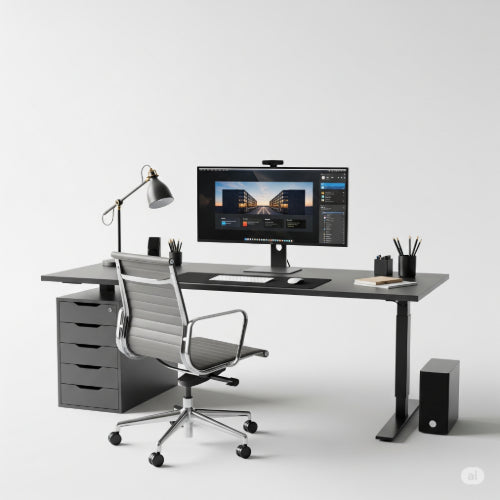
How to Build the Perfect Workstation for Video Editing
For video editors, a high-performing workstation isn't just a luxury; it's a necessity. The demands of editing high-resolution footage, applying complex effects, and rendering lengthy timelines can quickly bring an underpowered machine to its knees. A well-built video editing workstation ensures smooth playback, faster rendering times, and a more efficient, frustration-free workflow.
This guide will break down the essential components and considerations for building the perfect workstation tailored to the rigorous demands of video editing.
1. The Brain: CPU (Central Processing Unit)
The CPU is arguably the most critical component for video editing. It handles processing video frames, applying effects, and managing your software.
-
Core Count is Key: Video editing software (like Adobe Premiere Pro, DaVinci Resolve, Final Cut Pro) is highly multi-threaded, meaning it can utilize many CPU cores. Aim for processors with a high core count.
- Minimum: 6-8 cores (e.g., Intel Core i5/i7, AMD Ryzen 5/7) for 1080p editing.
- Recommended: 8-16 cores (e.g., Intel Core i7/i9, AMD Ryzen 7/9) for 4K editing and complex projects.
- High-End: 16+ cores (e.g., Intel Core i9, AMD Ryzen 9/Threadripper) for 6K/8K, heavy VFX, or professional studios.
- Clock Speed: While core count is crucial, higher clock speeds also benefit responsiveness and single-threaded tasks within your editing suite.
- Intel vs. AMD: Both offer excellent choices. AMD's Ryzen series often provides more cores for the money, while Intel's higher-end chips can offer slightly better single-core performance. Consider your budget and specific software optimizations.
2. The Workhorse: GPU (Graphics Processing Unit)
While the CPU does the heavy lifting for many editing tasks, the GPU is increasingly vital for hardware-accelerated rendering, effects processing, and smooth playback, especially with modern codecs and effects.
-
VRAM: The amount of dedicated video memory (VRAM) is crucial.
- Minimum: 6GB-8GB (e.g., NVIDIA RTX 3050/4060, AMD RX 6600/7600) for 1080p/light 4K.
- Recommended: 12GB-16GB (e.g., NVIDIA RTX 4070/4080, AMD RX 7800 XT/7900 XT) for serious 4K editing.
- High-End: 24GB+ (e.g., NVIDIA RTX 4090, Quadro cards) for 6K/8K, complex VFX, and specialized tasks.
- NVIDIA vs. AMD: NVIDIA GPUs often have a slight edge in performance and stability due to better CUDA core optimization in many popular editing applications. However, AMD's recent offerings are very competitive, especially in DaVinci Resolve, which leverages OpenCL.
3. The Workspace: RAM (Random Access Memory)
RAM acts as your workstation's short-term memory, allowing it to quickly access data. More RAM means you can work with larger files, more complex timelines, and run multiple applications simultaneously without slowdowns.
- Minimum: 16GB for basic 1080p editing.
- Recommended: 32GB for 4K editing and general professional use.
- Ideal: 64GB or more for 6K/8K, multi-cam editing, heavy motion graphics, or if you run multiple demanding applications concurrently.
- Speed: Faster RAM (higher MHz) can also provide a small but noticeable performance boost.
4. The Storage Solution: SSDs and HDDs
A proper storage setup is crucial for responsive editing. You'll need a combination of speed and capacity.
-
Boot Drive (OS & Applications):
- NVMe SSD (PCIe 4.0 or 5.0): This is essential for your operating system and all your editing software. NVMe drives are significantly faster than traditional SATA SSDs, leading to quicker boot times and faster application loading. Aim for at least 500GB or 1TB.
-
Working Drive (Active Projects & Cache):
- Fast NVMe SSD: Dedicate a separate, large NVMe SSD (2TB-4TB or more) specifically for your current video projects, media cache, and scratch disk. This is where your footage will be read from and written to during editing, so speed is paramount.
-
Archive/Mass Storage (Completed Projects & Raw Footage):
- Large HDD (or slower SSDs): Once projects are complete or for storing raw, unedited footage, traditional hard drives (HDDs) offer the best cost-per-gigabyte. Consider multiple HDDs in a RAID configuration for redundancy and performance, or even an external NAS (Network Attached Storage) solution for larger teams.
5. The Foundation: Motherboard
The motherboard connects all your components.
- Socket Compatibility: Ensure it matches your chosen CPU (e.g., AM5 for AMD Ryzen 7000 series, LGA 1700 for Intel 12th-14th Gen).
- RAM Slots: Look for at least 4 RAM slots for future upgrades.
- PCIe Slots: Ensure enough PCIe slots for your GPU and multiple NVMe SSDs. PCIe 4.0 or 5.0 support is important for the fastest SSDs and GPUs.
- Connectivity: USB 3.2 Gen 2 (or higher), Thunderbolt (especially for Mac users or external high-speed storage), and fast Ethernet ports are highly beneficial.
6. The Powerhouse: PSU (Power Supply Unit)
Don't skimp on the PSU. A reliable power supply ensures stable operation and protects your components.
-
Wattage: Calculate the total wattage required by your CPU, GPU, and other components, then add a significant buffer (e.g., 20-30%). Use online PSU calculators.
- Rough Guide: 750W-850W for mid-range systems, 1000W+ for high-end systems with powerful GPUs.
- Efficiency Rating: Look for 80 PLUS Bronze, Gold, Platinum, or Titanium ratings for better efficiency and less heat.
7. The Enclosure & Cooling: Case and CPU Cooler
- Case: Choose a case with good airflow and enough space for your components, especially long GPUs and large CPU coolers.
-
CPU Cooler: A powerful CPU generates a lot of heat.
- High-End Air Cooler: Excellent for many high-core-count CPUs.
- AIO (All-in-One) Liquid Cooler: Often preferred for extreme CPUs, offering superior cooling performance and a cleaner aesthetic.
- Case Fans: Ensure adequate case fans for optimal airflow to prevent thermal throttling.
8. Peripherals & Calibration
- Monitor: A high-resolution (4K recommended for professional work) and color-accurate monitor is essential for precise editing. Look for IPS panels with good color gamut coverage (e.g., 100% sRGB, 99% Adobe RGB/DCI-P3).
- Color Calibrator: Invest in a hardware color calibrator to ensure your monitor displays accurate colors.
- Comfortable Peripherals: An ergonomic keyboard and mouse for long editing sessions.
- Audio Monitoring: Quality headphones or studio monitors for accurate audio mixing.
Conclusion
Building the perfect workstation for video editing is an investment that pays dividends in productivity and creative freedom. By carefully selecting powerful components for your CPU, GPU, RAM, and storage, and ensuring proper cooling and peripherals, you'll create a machine that not only meets the demanding requirements of modern video editing but also empowers you to bring your creative visions to life with speed and precision. Happy editing!