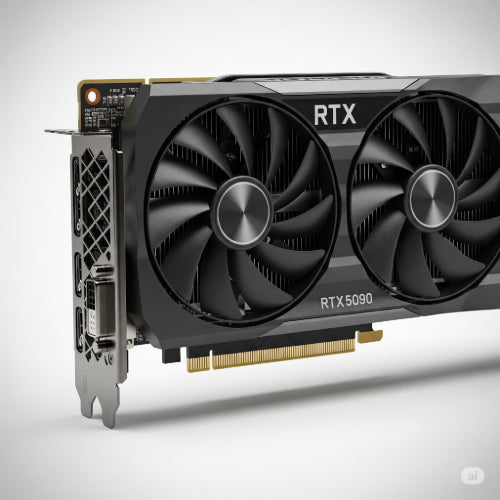
Power Up Your Pixels: The Ultimate Guide to Upgrading Your Desktop's Graphics Card
Is your PC struggling to keep up with the latest games? Are your video editing renders crawling to a halt? Or perhaps your design software feels sluggish? If you're experiencing any of these frustrations, it's highly likely that your graphics card, or GPU (Graphics Processing Unit), is the bottleneck. Upgrading your graphics card is often the single most impactful way to boost your desktop's performance, especially for gaming, content creation, and other graphically intensive tasks.
But before you jump into the world of GPUs, here's everything you need to know to make a smart, seamless upgrade.
Why Upgrade Your Graphics Card?
- Gaming: Higher frame rates, better resolutions (1080p, 1440p, 4K), and the ability to run games on higher graphical settings.
- Content Creation: Faster video rendering, smoother 3D modeling, and more efficient photo editing.
- Productivity: Improved performance for multi-monitor setups and certain specialized applications.
- Future-Proofing: Keep your system relevant for upcoming software and games for a longer period.
Step 1: Assess Your Current System and Needs
Before you buy, you need to understand what you have and what you want to achieve.
-
Check Your Current Specs:
- Existing GPU: What model do you currently have? (e.g., NVIDIA GeForce GTX 1060, AMD Radeon RX 580). This helps gauge the performance jump.
- CPU (Processor): Is your CPU powerful enough to "feed" a new, high-end GPU? A weak CPU can bottleneck a powerful GPU, leading to wasted potential. (e.g., Intel Core i5/i7/i9, AMD Ryzen 5/7/9).
- RAM (Memory): While less critical for GPU performance directly, sufficient RAM (16GB+ recommended for modern gaming/tasks) ensures overall system smoothness.
- Power Supply Unit (PSU): This is CRUCIAL. Every GPU has a recommended PSU wattage. Check your PSU's current wattage (look for a sticker on the PSU itself or in your PC's documentation) and ensure it has the necessary PCIe power connectors (6-pin, 8-pin, 12-pin).
- Case Size: Will the new, often larger, GPU physically fit inside your computer case? Measure the available length and height.
- Motherboard Compatibility: Modern GPUs use the PCI Express (PCIe) slot. Most motherboards from the last 10-15 years will have at least one x16 PCIe slot. Ensure your motherboard has a free one.
-
Define Your Needs and Budget:
- What are you upgrading for? Gaming? Professional work? Both?
- Resolution and Refresh Rate: Are you targeting 1080p @ 60Hz, 1440p @ 144Hz, or 4K? Higher resolutions and refresh rates demand more powerful GPUs.
- Budget: GPUs range from under $200 to over $1000. Set a realistic budget based on your needs.
Step 2: Choose Your New Graphics Card
This is the fun part, but also the most challenging. Research is key!
- NVIDIA vs. AMD: The two main players. Both offer excellent cards across various price points. NVIDIA generally has a slight edge in ray tracing performance and features like DLSS, while AMD often offers competitive raw rasterization performance and features like FSR.
-
Performance Tiers: GPUs are tiered by performance.
- Entry-Level: (e.g., NVIDIA RTX 3050/4050, AMD RX 6600) – Good for 1080p gaming.
- Mid-Range: (e.g., NVIDIA RTX 3060/4060 Ti, AMD RX 6700 XT/7700 XT) – Excellent for 1080p and capable 1440p gaming.
- High-End: (e.g., NVIDIA RTX 3080/4070 Ti/4080, AMD RX 6900 XT/7900 XTX) – Fantastic for 1440p and entry-level 4K gaming.
- Enthusiast/Flagship: (e.g., NVIDIA RTX 4090) – Uncompromised 4K performance, very expensive.
- VRAM (Video RAM): More VRAM is better, especially for higher resolutions and demanding games/applications. Aim for at least 8GB for modern gaming, 12GB+ is ideal for 1440p/4K or content creation.
- Read Reviews: Always check independent reviews and benchmarks for the specific GPU models you're considering. Compare them against your current GPU and other cards in your price range.
- Check PSU Requirements: Double-check that your chosen GPU's recommended PSU wattage is within your current PSU's capacity, and that you have the correct power connectors.
Step 3: The Installation Process (Step-by-Step)
This is a physical process, so take your time and be careful.
- Backup Your Data: Always a good practice before any hardware changes.
- Gather Tools: Phillips head screwdriver. An anti-static wrist strap is recommended.
-
Prepare Your PC:
- Power Down: Completely shut down your computer and unplug the power cable from the wall.
- Ground Yourself: Touch a metal part of your PC case (after unplugging) to discharge any static electricity. Wear an anti-static wrist strap if you have one.
- Open the PC Case: Remove the side panel of your computer case.
-
Locate and Remove Old GPU:
- Unplug Power Cables: Disconnect any PCIe power cables (6-pin, 8-pin, etc.) from your old GPU.
- Unscrew Mounting Bracket: Unscrew the small screw(s) holding the GPU's bracket to the PC case.
- Release PCIe Retention Clip: At the end of the PCIe slot on your motherboard, there's a small plastic or metal clip. Gently push or pull it to release the GPU. Do not force it.
- Carefully Pull Out: Gently pull the old GPU straight out of the PCIe slot.
-
Install New GPU:
- Align: Carefully align your new GPU with the PCIe x16 slot on your motherboard.
- Push Down: Apply firm, even pressure to push the GPU straight down into the slot until it clicks into place and the PCIe retention clip closes.
- Secure Mounting Bracket: Screw the GPU's bracket securely to the PC case.
- Connect Power Cables: Connect the necessary PCIe power cables from your PSU to your new GPU. Ensure they are fully seated. Never use a 6-pin cable in an 8-pin slot, or vice-versa, without a proper adapter.
- Close PC Case: Replace the side panel of your computer case.
- Connect Monitor: Plug your monitor cable (HDMI, DisplayPort) into the new graphics card's output ports, not the motherboard's (unless you're using integrated graphics for troubleshooting).
Step 4: Install Drivers
This is software, but just as crucial as the hardware.
- Boot Up Your PC: Turn on your computer.
- Uninstall Old Drivers: If you're switching from an NVIDIA to AMD card (or vice-versa), it's highly recommended to use a tool like Display Driver Uninstaller (DDU) in Windows Safe Mode to completely remove old drivers. If upgrading within the same brand, you can often skip this, but a clean install is always best.
- Download New Drivers: Go to the official website of your new GPU's manufacturer (NVIDIA or AMD). Navigate to their "Drivers" or "Support" section.
- Install Drivers: Select your specific GPU model and operating system, download the latest stable drivers, and run the installer. Follow the on-screen prompts. A restart will likely be required.
Step 5: Test and Enjoy!
- Run Benchmarks/Games: Fire up your favorite games or demanding applications.
- Monitor Performance: Use tools like MSI Afterburner or AMD Adrenalin Software to monitor GPU temperatures, usage, and frame rates. Ensure everything is running smoothly.
- Troubleshoot: If you encounter issues (no display, crashes, poor performance), double-check all connections, re-install drivers, and consult online forums or support resources.
Upgrading your graphics card is a rewarding experience that breathes new life into your desktop. With careful planning and execution, you'll be enjoying crisper visuals and smoother performance in no time!