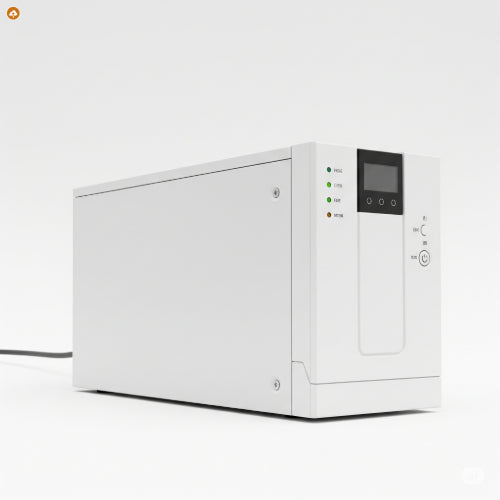
The Ultimate Guide to Troubleshooting Your UPS System
In an age where consistent power is the backbone of our digital lives, a reliable Uninterruptible Power Supply (UPS) system is more than a convenience – it's a necessity. From protecting sensitive electronics from surges to providing crucial uptime during outages, a UPS is a silent guardian. But what happens when that guardian starts acting up?
Don't let a blinking light or an unexpected shutdown leave you in the dark. This ultimate guide will walk you through common UPS issues and empower you with the knowledge to troubleshoot and resolve them, ensuring your power stays consistent and your equipment remains protected.
1. Understanding the Language of Your UPS: Indicator Lights and Alarms
Before grabbing your toolkit, take a moment to observe your UPS. Most UPS systems communicate their status through a series of indicator lights, LCD displays, or audible alarms. Consult your UPS manual to understand what each specific light pattern or alarm sound signifies.
Common indicators include:
-
Online/Normal Mode: Green light, steady, no alarm. Everything is good.
-
Battery Mode: Amber/yellow light, possibly a beeping alarm. The UPS is running on battery power.
-
Fault/Error: Red light, often accompanied by a continuous or rapid alarm. This indicates a problem with the UPS itself.
-
Battery Low/Replace Battery: Amber/yellow light, sometimes a slow beep. The battery is depleted or nearing end-of-life.
-
Overload: Red light, often a continuous alarm. Too much equipment is connected.
Understanding these signals is your first step to diagnosis.
2. The Basics: Power and Connections
Many UPS issues stem from simple oversight. Always start with the fundamentals:
-
Is the UPS Plugged In and Turned On? It sounds obvious, but double-check! Ensure the power cord is securely plugged into a working wall outlet and the UPS is powered on.
-
Are Devices Properly Connected to the UPS? Ensure all critical devices are plugged into the battery backup outlets on the UPS, not just the surge-only outlets (if your model has both).
-
Check Circuit Breakers: Has a breaker tripped on the UPS itself or at your electrical panel? Reset any tripped breakers.
-
Test the Outlet: Plug another device (like a lamp) into the wall outlet where the UPS is connected to confirm it's receiving power.
3. Battery-Related Issues: The Heart of the UPS
The battery is the most common point of failure in a UPS system.
-
UPS Constantly on Battery Mode (Even with Power):
-
Cause: This usually indicates a problem with the incoming utility power or the UPS's ability to recognize it.
-
Troubleshoot:
-
Confirm the wall outlet is working (as above).
-
Try plugging the UPS into a different wall outlet.
-
Ensure the input voltage range of the UPS matches your utility power.
-
The UPS may have an internal fault. Consider a hard reset (see below).
-
-
-
Short Battery Run-Time / Battery Not Holding a Charge:
-
Cause: An aging or faulty battery. UPS batteries typically last 3-5 years, depending on usage and environmental factors.
-
Troubleshoot:
-
Age: If your UPS is several years old, the battery is likely at the end of its life.
-
Load: Are you overloading the UPS? Check the connected load against the UPS's capacity.
-
Temperature: High ambient temperatures can shorten battery life.
-
Solution: Most modern UPS systems have user-replaceable batteries. Order a replacement battery kit from the manufacturer or a reputable supplier and follow the replacement instructions carefully.
-
-
-
"Replace Battery" Indicator/Alarm:
-
Cause: The UPS has detected that the battery capacity is too low or that the battery is failing.
-
Solution: Replace the battery. Do not ignore this alarm; your UPS will not provide proper backup power.
-
4. Overload and Capacity Issues
-
Overload Alarm/Red Light:
-
Cause: You've plugged in too much equipment, exceeding the UPS's VA (Volt-Ampere) or Watt capacity.
-
Troubleshoot:
-
Unplug Non-Essential Devices: Immediately disconnect any non-critical equipment from the UPS battery outlets until the alarm clears.
-
Calculate Load: Add up the power draw (in Watts) of all devices connected to the UPS. Ensure this total is comfortably below the UPS's rated Watt capacity (VA ratings can be misleading for actual power draw).
-
Solution: If you consistently overload the UPS, you need to either reduce the connected load or upgrade to a higher-capacity UPS.
-
-
5. Communication and Software Issues
-
UPS Software Not Recognizing UPS:
-
Cause: USB cable issue, driver problem, or communication settings.
-
Troubleshoot:
-
Check USB Cable: Ensure the USB cable (or serial cable) is securely connected to both the UPS and your computer. Try a different cable or USB port.
-
Reinstall Drivers/Software: Uninstall and then reinstall the UPS monitoring software and any associated drivers.
-
Compatibility: Ensure the software version is compatible with your operating system.
-
-
6. When All Else Fails: Resetting Your UPS
A hard reset can sometimes clear internal glitches, similar to restarting a computer.
-
Procedure (General - consult your manual for exact steps):
-
Disconnect all connected equipment from the UPS.
-
Unplug the UPS from the wall outlet.
-
Press and hold the power button on the UPS for 5-10 seconds (or until any remaining lights turn off and any beeping stops). This drains residual power.
-
Wait a minute or two.
-
Plug the UPS back into the wall outlet.
-
Turn the UPS on.
-
Reconnect your equipment.
-
7. When to Call for Professional Help
While many issues are user-fixable, some require expert intervention:
-
Persistent Fault Alarms: If the UPS consistently indicates an internal fault even after basic troubleshooting and resets.
-
Physical Damage: Any visible damage to the casing, swollen batteries, or burning smells.
-
No Power Output: If the UPS is on but provides no power to connected devices (and you've checked connections).
-
Under Warranty: If your UPS is still under warranty, contact the manufacturer's support.
A functional UPS is a cornerstone of a resilient setup. By systematically approaching troubleshooting, understanding the signals your UPS provides, and performing routine maintenance like battery replacements, you can ensure your critical equipment remains protected and powered, even when the lights go out.