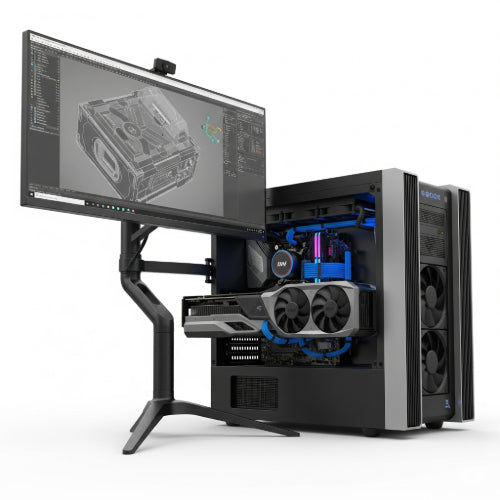
Turbocharge Your Day: Tips for Maintaining Your Workstation for Maximum Performance
Your workstation – whether it's a sleek laptop or a powerful desktop – is the engine of your productivity. When it's running slow, freezing up, or just generally lagging, it can turn a productive workday into a frustrating slog. Just like a car needs regular servicing, your computer needs consistent care to maintain its speed, responsiveness, and overall efficiency.
Don't wait for your workstation to grind to a halt! Here are essential tips to keep your machine purring and ensure maximum performance, letting you focus on your work, not on waiting.
1. The Digital Declutter: Tidy Up Your Software
Over time, your computer accumulates a lot of digital baggage that can slow it down.
-
Uninstall Unused Programs: Go through your installed applications and remove anything you no longer use. These programs can run in the background, take up valuable storage, and even launch at startup.
-
Manage Startup Programs: Many applications automatically launch when your computer starts, consuming RAM and CPU cycles. Use your operating system's Task Manager (Windows) or Activity Monitor (macOS) to disable unnecessary startup items.
-
Clear Browser Cache and Cookies: Web browsers store a lot of temporary data. Regularly clear your browser's cache, cookies, and Browse history. While some data helps load frequent sites faster, an overloaded cache can actually slow things down.
-
Empty Your Recycle Bin/Trash: Files moved to the Recycle Bin or Trash still occupy disk space until permanently deleted. Make it a habit to empty them regularly.
2. Disk Space Matters: Free Up Storage
Running low on disk space can severely impact performance, especially on your primary drive (C: drive on Windows, Macintosh HD on macOS).
-
Delete Large, Unnecessary Files: Scan your documents, downloads, and video folders for large files you no longer need.
-
Utilize Cloud Storage: For files you don't need immediate access to, move them to cloud storage services like Google Drive, OneDrive, or Dropbox.
-
External Hard Drives: For large archives or media libraries, consider an external hard drive to free up space on your main drive.
-
Run Disk Cleanup (Windows) / Optimize Storage (macOS): Both operating systems have built-in tools to help identify and remove temporary files, system logs, and other dispensable data.
-
Defragment Your Hard Drive (HDD only): If you're still using a traditional Hard Disk Drive (HDD), regular defragmentation can improve file access speeds. Note: This is not necessary for Solid State Drives (SSDs) and can actually reduce their lifespan.
3. Updates are Your Friend: Keep Software Current
Software updates aren't just about new features; they often include critical performance enhancements, bug fixes, and security patches.
-
Operating System Updates: Enable automatic updates for Windows or macOS. These updates optimize system processes and improve overall stability.
-
Driver Updates: Keep your hardware drivers (especially for graphics cards, network adapters, and chipsets) up to date. Outdated drivers can cause compatibility issues and performance bottlenecks. You can often find these on your manufacturer's website.
-
Application Updates: Regularly update your most frequently used applications. Developers often release performance-boosting updates.
4. Guard Against Malicious Software: Stay Secure
Viruses, malware, and adware don't just pose security risks; they can also severely degrade your workstation's performance by consuming resources in the background.
-
Install Antivirus/Anti-Malware Software: A reputable security suite is non-negotiable.
-
Regular Scans: Schedule full system scans regularly (e.g., weekly) to detect and remove threats.
-
Be Vigilant: Exercise caution when clicking on suspicious links, opening unexpected email attachments, or downloading software from untrusted sources.
5. Hardware Health Check: The Physical Side
It's not all about software; the physical condition of your workstation matters too.
-
Clean Out Dust: Dust is the enemy of electronics. It acts as an insulator, trapping heat and causing components to overheat, which leads to throttling and slower performance. Use compressed air to regularly blow dust out of vents and fans.
-
Monitor Temperatures: Overheating can cause crashes and slow performance. Use monitoring software (e.g., HWMonitor for Windows) to keep an eye on your CPU and GPU temperatures.
-
Check Cables and Connections: Ensure all external peripherals are securely connected. For desktops, ensure internal cables are properly seated.
-
Consider RAM Upgrade: If your workstation frequently struggles with multiple applications open, a RAM (memory) upgrade can significantly boost multitasking performance.
-
Upgrade to an SSD: If your workstation still uses a traditional HDD, upgrading to a Solid State Drive (SSD) is arguably the single most impactful upgrade you can make for speed and responsiveness.
6. The Ultimate Reset: Reinstallation (Last Resort)
If all else fails and your workstation is still sluggish despite your best efforts, a clean reinstallation of your operating system can provide a fresh start. This should be considered a last resort as it involves backing up all your data and reinstalling all your applications.
By dedicating a little time to these maintenance tips, you won't just avoid frustrating slowdowns; you'll also extend the lifespan of your workstation and ensure it remains a reliable tool for your daily tasks. A well-maintained machine is a productive machine!