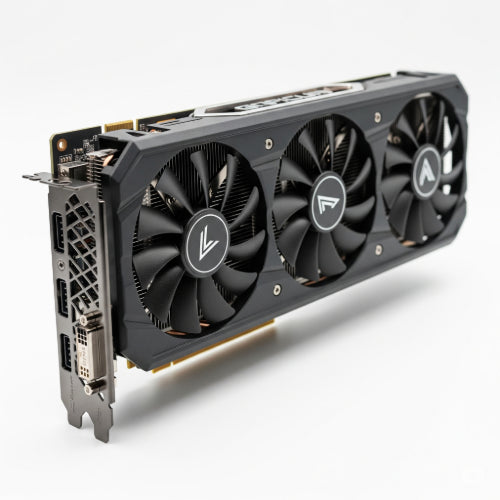
Unleash the Power: Tips for Maintaining Your Graphics Card and Maximizing Performance
Your graphics card (GPU) is the powerhouse behind smooth visuals, immersive gaming experiences, and accelerated creative workflows. Whether you're a hardcore gamer, a content creator, or simply someone who appreciates a crisp display, keeping your GPU in top shape is crucial for optimal performance and longevity. Neglecting its care can lead to dropped frame rates, visual glitches, overheating, and eventually, hardware failure.
Fear not! Maintaining your graphics card doesn't require a degree in engineering. With a few simple habits and preventative measures, you can ensure your GPU runs smoothly and delivers the visual fidelity you expect. Here’s your guide to keeping your graphics card happy and maximizing its performance:
1. Keep it Cool: The Importance of Thermal Management
Heat is the enemy of all electronics, and GPUs are no exception. Overheating can lead to performance throttling (where the card reduces its clock speeds to prevent damage), instability, and a shortened lifespan.
- Ensure Proper Airflow: This is the most crucial step. Make sure your computer case has adequate airflow. Ensure there are intake fans bringing cool air in and exhaust fans pushing hot air out. Obstructions like dust buildup can severely restrict airflow.
-
Clean Your GPU Regularly: Dust accumulates on the heatsink and fans of your graphics card, acting as an insulator and preventing efficient heat dissipation.
- Power Down and Unplug: Always turn off your computer and unplug it from the wall before cleaning any internal components.
- Use Compressed Air: Use a can of compressed air to carefully blow dust out of the GPU's heatsink fins, fans, and other crevices. Hold the fan blades gently to prevent them from spinning too fast.
- Monitor Temperatures: Use monitoring software (like MSI Afterburner, HWMonitor, or your GPU manufacturer's utility) to keep an eye on your GPU temperatures, especially during intensive tasks like gaming or video editing. Research the safe operating temperature range for your specific card. If you consistently see high temperatures, you may need to improve your case airflow or consider reapplying thermal paste (advanced users only).
2. Driver Duties: Keeping Your Software Up-to-Date
Graphics card drivers are the software that allows your operating system and applications to communicate effectively with your GPU. Outdated or corrupted drivers can lead to performance issues, graphical glitches, and instability.
- Install the Latest Drivers: Regularly check the websites of your GPU manufacturer (NVIDIA GeForce or AMD Radeon) for the latest driver releases. These often include performance optimizations for new games and applications, as well as bug fixes.
- Perform Clean Driver Installations: When installing new drivers, it's generally recommended to perform a "clean installation." This option removes all remnants of the old drivers, preventing potential conflicts. Both NVIDIA and AMD provide this option in their driver installers.
- Avoid Beta Drivers (Generally): While beta drivers may offer early access to new features or optimizations, they can also be less stable. Unless you're specifically testing something, stick to the stable, WHQL-certified (Windows Hardware Quality Labs) releases.
3. Optimize In-Game Settings (for Gamers):
While not direct maintenance, optimizing your in-game graphics settings can significantly impact performance and prevent your GPU from being pushed beyond its limits unnecessarily.
- Understand Your Card's Capabilities: Research the recommended settings for your GPU in the games you play. Aim for a balance between visual quality and smooth frame rates.
- Adjust Settings Gradually: Experiment with different settings (texture quality, shadows, anti-aliasing, etc.) to find the sweet spot for your system. Lowering demanding settings can often provide a significant performance boost with a minimal visual difference.
- Utilize Frame Rate Limiters: Some games or driver software allow you to limit the maximum frame rate. This can reduce GPU load and prevent it from working unnecessarily hard, especially if your monitor's refresh rate is lower than the potential frame rate.
4. Physical Care and Handling:
Treat your graphics card with respect, especially if you ever need to remove or install it.
- Static Electricity Precautions: Always ground yourself before touching any internal computer components to prevent electrostatic discharge (ESD), which can damage sensitive electronics.
- Secure Connections: Ensure the graphics card is firmly seated in its PCIe slot and that any necessary power connectors (from the power supply) are securely attached.
- Avoid Physical Stress: Be careful not to put excessive pressure or bend the graphics card.
5. Monitor Resource Usage:
Keep an eye on your GPU's utilization using monitoring software. Consistently running at 100% utilization for extended periods (without proper cooling) can put unnecessary stress on the card. If this is a regular occurrence, you might need to consider upgrading to a more powerful GPU for your workload.
By implementing these simple maintenance tips, you can ensure your graphics card operates at its peak potential, providing you with smooth visuals and reliable performance for years to come. A little care goes a long way in keeping your digital world looking its best!