Laptop Docking Stations vs. USB Hubs: What's the Best Way to Expand Your Connectivity?
In our increasingly mobile work environments, laptops have become indispensable. But for many, the slim form factor that makes them portable also limits their connectivity options. This is where laptop docking stations and USB hubs come into play, promising to expand your laptop's capabilities. While both aim to provide more ports, they do so with vastly different approaches and offer distinct sets of pros and cons.
So, how do you decide whether a sleek USB hub or a more robust docking station is the right fit for your workspace? Let's break it down.
Understanding the Basics
At their core, both devices are designed to add more ports to your laptop. However, their scope and functionality differ significantly:
-
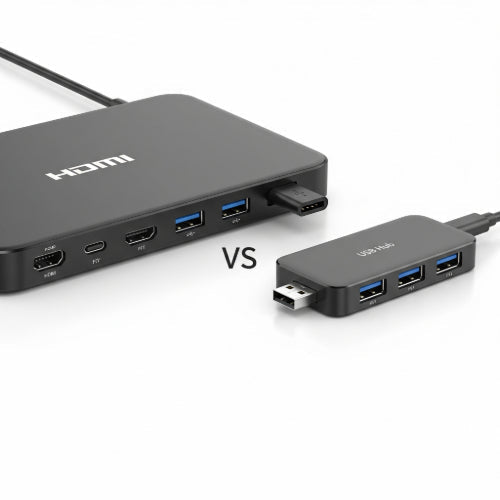
USB Hub: Think of a USB hub as a simple splitter. It takes one USB port on your laptop and multiplies it into several, allowing you to connect multiple USB devices simultaneously (e.g., mouse, keyboard, flash drive). They primarily handle data transfer for USB peripherals.
-
Laptop Docking Station: A docking station is a much more comprehensive solution. It typically connects to your laptop via a single high-bandwidth cable (often USB-C/Thunderbolt) and can extend your laptop's capabilities to include multiple monitors, Ethernet, various USB types, audio jacks, and even power delivery. It essentially transforms your laptop into a full desktop workstation.
Laptop Docking Stations: The Desktop Powerhouse
Pros:
-
Single-Cable Connectivity: This is the ultimate convenience. Connect one cable to your laptop, and you instantly gain access to multiple monitors, a wired network, all your peripherals, and often, power delivery (charging your laptop). This streamlines setup and declutters your desk.
-
Multi-Monitor Support: Most modern docking stations can support two, three, or even four external monitors at high resolutions, making them ideal for professionals who require extensive screen real estate.
-
Comprehensive Port Selection: Beyond just USB ports, docking stations typically offer Ethernet (for stable internet), HDMI, DisplayPort, VGA (for legacy monitors), audio jacks, SD card readers, and various USB-A and USB-C ports.
-
Power Delivery (Charging): Many docking stations can charge your laptop through the same single cable connection, eliminating the need for a separate power adapter.
-
Enhanced Performance: By offloading connectivity to the dock, your laptop's internal resources can focus on processing tasks, potentially leading to smoother performance, especially when running multiple high-bandwidth peripherals or monitors.
-
Hot-Swapping: You can generally connect and disconnect your laptop from the dock without needing to restart, making transitions between mobile and desktop work seamless.
-
Increased Desk Organization: With all cables running to the dock, your workspace remains much tidier.
Cons:
-
Cost: Docking stations are significantly more expensive than USB hubs due to their advanced functionality and integrated chipsets.
-
Compatibility: While USB-C and Thunderbolt have improved universal compatibility, some older or proprietary docks might only work with specific laptop brands or models, or may not offer full functionality across different brands.
-
Size: They are generally larger and less portable than USB hubs, intended for a semi-permanent desk setup.
-
Heat Generation: High-performance docks, especially those handling multiple monitors and charging, can generate a noticeable amount of heat.
USB Hubs: The Simple Expander
Pros:
-
Affordability: USB hubs are much more budget-friendly, making them an accessible option for anyone needing just a few extra ports.
-
Portability: They are small, lightweight, and easily fit into a laptop bag, making them ideal for on-the-go professionals who might need to connect a mouse, keyboard, or flash drive when working remotely.
-
Simplicity: They are plug-and-play devices with no complex setup required.
-
Broad Compatibility: Virtually all laptops with a USB port can utilize a USB hub, regardless of brand or operating system.
-
Basic Connectivity Expansion: Perfect for adding more USB ports for everyday peripherals like mice, keyboards, webcams, or external hard drives.
Cons:
-
Limited Functionality: USB hubs primarily expand USB ports. They typically do not offer multi-monitor support, Ethernet connectivity (unless it's a "USB hub with Ethernet" which is a step towards a dock), or power delivery to the laptop.
-
Bandwidth Limitations: Standard USB hubs share the bandwidth of the single USB port they connect to on your laptop. If you connect many high-bandwidth devices (e.g., multiple external hard drives), you might experience performance degradation.
-
Power Limitations: Unpowered (passive) USB hubs draw power directly from the laptop, which can drain your laptop battery faster. They also might not provide enough power for demanding devices. Powered (active) hubs use an external power adapter but add more cables.
-
Clutter: While they add ports, the lack of centralized cable management can still lead to a cluttered desk, especially if you're plugging in many different types of devices.
Which One Is Right For You?
The choice between a docking station and a USB hub boils down to your specific needs:
-
Choose a Laptop Docking Station if:
-
You frequently work at a fixed desk and want to transform your laptop into a powerful desktop setup.
-
You need to connect multiple external monitors.
-
You require a stable wired Ethernet connection.
-
You want a single-cable solution for all your peripherals and charging.
-
You prioritize maximum convenience and a clutter-free workspace.
-
-
Choose a USB Hub if:
-
You only need to add a few extra USB ports for basic peripherals like a mouse, keyboard, or flash drive.
-
Portability and a low cost are your top priorities.
-
You primarily rely on your laptop's built-in screen and Wi-Fi.
-
Your connectivity needs are minimal and temporary (e.g., for presentations, quick file transfers).
-
Both docking stations and USB hubs serve valuable purposes in expanding your laptop's utility. By understanding their distinct capabilities and limitations, you can make the best choice to enhance your productivity and streamline your digital life.