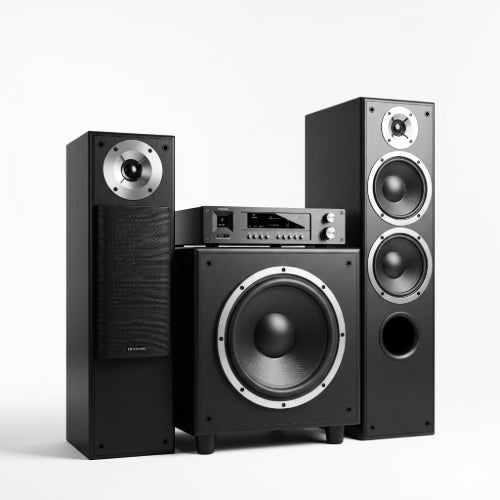
Transform Your Home Office Audio: How to Install and Set Up a Sound System
For many of us, the home office has become the new norm, a place where productivity, focus, and comfort converge. While we often prioritize our monitor setup, ergonomic chair, and fast internet, one crucial element often gets overlooked: sound.
A high-quality sound system in your home office isn't just for audiophiles. It can dramatically enhance your workday by:
- Improving Communication: Crystal-clear audio for video calls, webinars, and online meetings reduces fatigue and ensures you never miss a word.
- Boosting Focus & Mood: The right background music can help you concentrate, mask distracting ambient noise, and even improve your mood.
- Enhancing Entertainment: When work is done, your sound system can seamlessly transition to providing immersive audio for movies, games, or your favorite podcasts.
- Reducing Headphone Fatigue: Giving your ears a break from headphones, especially during long calls, can be a game-changer for comfort and hearing health.
Ready to upgrade your home office audio? Let's walk through how to install and set up a sound system that's perfect for your space.
1. Choosing Your Components: Tailoring to Your Needs
The "best" sound system isn't a one-size-fits-all solution. It depends on your budget, space, and primary use cases. Here are the common components:
-
Speakers:
- Desktop/Bookshelf Speakers: Compact and versatile, ideal for placing on your desk or on small stands. Available in active (powered) or passive (require an amplifier) versions. Great for personal listening and video calls.
- Soundbar: A sleek, space-saving option that sits under your monitor. Excellent for clear dialogue in video calls and good for general media consumption.
- Studio Monitors: Designed for audio professionals, these offer incredibly accurate and flat frequency responses. If audio production or critical listening is part of your work, consider these.
- Subwoofer (Optional): Adds depth and richness to bass frequencies, enhancing music and movies. Only consider if space allows and you desire more impactful sound.
-
Amplifier/Receiver (if using passive speakers):
- Stereo Amplifier: For two passive speakers. Simple and effective.
- AV Receiver: More complex, designed for home theater setups with multiple channels (5.1, 7.1 etc.). Overkill for most home offices unless you plan a multi-channel setup for entertainment.
- Powered Speakers: Many desktop speakers are "active," meaning they have a built-in amplifier, simplifying your setup.
-
Audio Interface (Optional, but Recommended for Quality):
- A dedicated external audio interface (DAC - Digital-to-Analog Converter) connects your computer to your speakers. It bypasses your computer's often inferior internal sound card, significantly improving sound quality, reducing noise, and providing more robust connections. Essential for critical listening or audio production.
2. Physical Installation: Setting Up Your Gear
Once you have your components, it's time to connect them.
-
Placement is Key (Speakers):
- Desktop/Bookshelf Speakers: Position them equidistant from your listening position (your head) forming an equilateral triangle. Angle them slightly inward (toe-in) towards you. Place them on isolation pads or small stands to reduce vibrations transmitting to your desk.
- Soundbar: Place directly in front of your monitor, ensuring it doesn't block the screen.
- Subwoofer (if applicable): Experiment with placement. Corner placement often yields the most bass, but can sound boomy. Near a wall or under the desk are common starting points.
-
Connect Your Speakers:
- Powered Speakers: Connect the left and right speakers (if separate) using the provided cable. Then, connect one speaker directly to your computer or audio interface using an RCA, 3.5mm, or USB cable.
- Passive Speakers: Connect your speakers to your amplifier/receiver using speaker wire. Ensure positive (+) terminals on the amplifier go to positive (+) terminals on the speaker, and negative (-) to negative (-).
-
Connect Your Amplifier/Receiver (if applicable):
- Connect your amplifier/receiver to your computer. Common connections include:
- HDMI: For the best quality and multi-channel audio (if using an AV receiver with a monitor that also supports HDMI audio out).
- Optical (TOSLINK): Digital audio connection.
- Coaxial Digital: Another digital audio connection.
- RCA Stereo: Analog connection (red/white cables).
- USB: Many modern amps/receivers can connect directly via USB to your computer for digital audio.
- Connect your amplifier/receiver to your computer. Common connections include:
-
Connect Your Audio Interface (if applicable):
- Connect the audio interface to your computer via USB or Thunderbolt.
- Connect your speakers (or amplifier) to the outputs of the audio interface. Use balanced cables (TRS or XLR) if your speakers/interface support them for noise reduction over longer runs.
- Power Up: Plug all components into a power strip or, ideally, an Uninterruptible Power Supply (UPS) for surge protection and clean power. Turn on the amplifier/receiver first, then the computer and other devices.
3. Software Setup and Calibration: Fine-Tuning Your Sound
Physical connections are only half the battle. Now, optimize the sound from your computer.
-
Select Output Device:
- Windows: Right-click the speaker icon in the taskbar > "Sound settings" > "Choose your output device." Select your new audio interface, amplifier, or speakers.
- macOS: Go to System Settings > Sound > Output. Select your new audio device.
- Driver Installation (if needed): For audio interfaces or certain USB speakers/amplifiers, you may need to install specific drivers from the manufacturer's website.
- Basic Volume Levels: Start with your computer's volume at 70-80% and control the main listening volume using your speaker's or amplifier's volume knob. This ensures a strong signal from your computer without causing distortion.
-
Speaker Calibration (Optional but Recommended):
- Room Correction Software: Some higher-end AV receivers and even some active speakers come with built-in room correction software (e.g., Audyssey, Dirac Live). Use the included microphone to calibrate the sound for your specific room acoustics.
- Manual Adjustment: If no software is available, use your ears! Play some familiar music or spoken word. Adjust bass, treble, and balance controls on your amplifier/speakers to get a sound that's clear, balanced, and pleasant to your ears. Avoid excessive bass or treble that can muddy the sound.
- Monitor Position: Ensure your head is at tweeter level for optimal clarity.
4. Cable Management and Maintenance
- Tame the Tangle: Use Velcro straps or cable ties to bundle cables neatly. Route them along desk edges or through cable management trays. This not only looks cleaner but also prevents interference and makes troubleshooting easier.
- Keep it Clean: Dust can degrade audio quality and component lifespan. Regularly wipe down speakers and components.
- Software Updates: Keep drivers for your audio interface or any associated software updated.
- Speaker Isolation: Ensure speakers aren't vibrating directly on your desk, which can create muddy bass. Use isolation pads or small stands.
By following these steps, you'll transform your home office into an audio oasis. Say goodbye to tinny laptop speakers and hello to rich, clear sound that makes every video call more productive and every music break more enjoyable. Your ears (and your workflow) will thank you!