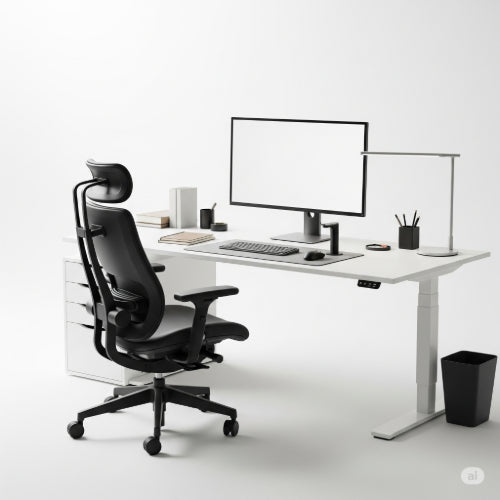
Your Comfort is Key: How to Set Up an Ergonomic Home Office for Maximum Well-being
Working from home has become the new normal for many, offering flexibility and convenience. However, spending long hours hunched over a laptop on the couch or kitchen table can lead to discomfort, pain, and even long-term health issues. Creating an ergonomic home office is crucial for maximizing your comfort, productivity, and overall well-being, right here in our own homes in [Region, e.g., our beautiful archipelago].
Ergonomics is all about designing your workspace to fit your body, reducing strain and promoting good posture. Here’s a step-by-step guide to setting up an ergonomic home office that works for you:
1. The Foundation: Your Chair
Your chair is arguably the most important element of your ergonomic setup.
- Adjustability is Key: Look for a chair with adjustable height, armrests (height and width), lumbar support, seat depth, and backrest tilt. These features allow you to customize the chair to your body.
-
Proper Positioning:
- Seat Height: Your feet should be flat on the floor or a footrest, with your thighs parallel to the ground.
- Lumbar Support: Ensure the chair has adequate lumbar support that fits the natural curve of your lower back. Adjust it so you feel gentle pressure in your lumbar region.
- Armrests: Adjust the height so your shoulders are relaxed and your elbows are bent at a 90-degree angle when your forearms are resting on them.
- Seat Depth: There should be about 2-4 fingers' width of space between the back of your knees and the edge of the seat.
2. The Command Center: Your Desk
Your desk height should work in harmony with your chair.
- Ideal Height: When seated correctly, your desk should be at a height that allows your elbows to be bent at a 90-degree angle while your wrists are straight and your shoulders are relaxed when typing.
- Standing Desk Option: Consider a standing desk or a sit-stand converter to alternate between sitting and standing throughout the day. This can help reduce sedentary behavior and improve energy levels.
- Desk Depth: Ensure you have enough desk depth to comfortably position your monitor at an arm's length away.
3. Your Visual Display: The Monitor
Proper monitor placement is crucial for preventing neck and eye strain.
- Height: The top of your screen should be at or slightly below your eye level. Use a monitor stand or adjustable arm to achieve this. Looking slightly downward is generally more comfortable for the neck.
- Distance: Position your monitor an arm's length away. You should be able to comfortably read text without leaning forward.
- Position: Center the monitor directly in front of you to avoid twisting your neck. If using multiple monitors, position your primary monitor directly ahead and secondary monitors slightly to the side.
- Brightness and Glare: Adjust the brightness of your screen to match the ambient lighting and reduce glare. Consider using an anti-glare screen protector if necessary, especially with the bright sunlight we often experience.
4. Input Devices: Keyboard and Mouse
Comfortable and correctly positioned input devices minimize strain on your wrists and arms.
- Keyboard Placement: Position your keyboard directly in front of you, close enough that you don't have to reach. Your wrists should be straight and relaxed while typing. Consider a wrist rest if it helps maintain a neutral wrist position.
- Mouse Placement: Place your mouse close to your keyboard to minimize reaching. Use your whole arm to move the mouse, rather than just your wrist. Consider an ergonomic mouse that fits your hand comfortably.
- Neutral Wrist Position: Avoid bending your wrists up, down, or sideways while typing or using the mouse.
5. Supporting Your Body: Footrest and Accessories
Small additions can make a big difference in comfort.
- Footrest: If your feet don't comfortably reach the floor when your chair is at the correct height, use a footrest to support your feet and maintain proper posture.
- Document Holder: If you frequently refer to physical documents while typing, use a document holder placed at the same height and distance as your monitor to reduce neck strain from constantly looking down.
- Headset: If you spend a lot of time on calls, use a headset to avoid cradling your phone between your head and shoulder, which can cause neck and shoulder pain.
6. Lighting Your Workspace:
Adequate and appropriate lighting is essential for reducing eye strain.
- Minimize Glare: Position your desk to avoid direct glare from windows or overhead lights. Use blinds or curtains to control natural light.
- Task Lighting: Use a desk lamp to provide focused light for specific tasks, especially during evenings or in dimly lit areas of your home.
- Avoid Harsh Overhead Lighting: Opt for softer, more diffused lighting sources if possible.
7. Take Regular Breaks:
No matter how perfectly set up your ergonomic home office is, prolonged sitting is still not ideal.
- Micro-Breaks: Stand up and stretch for 30-60 seconds every 20-30 minutes.
- Longer Breaks: Take a 5-10 minute break every hour to move around, walk, or do some light stretching. This helps improve circulation and reduces muscle fatigue.
- Eye Breaks: Follow the 20-20-20 rule: every 20 minutes, look at something 20 feet away for 20 seconds to reduce eye strain.
Creating an ergonomic home office is an investment in your long-term health and productivity. By paying attention to these key elements and making adjustments that suit your individual needs, you can transform your home workspace into a comfortable and supportive environment where you can thrive, right here in [Your Specific Location/Region, e.g., our sunny corner of Bicol]. Listen to your body, make gradual improvements, and enjoy a more comfortable and productive work-from-home experience!